
Table of Contents
HOW TO ADD BRANCH/DEPT ADMIN ACCOUNT
The BRANCH/DEPARTMENT ADMIN accounts are User Accounts found in the USERS menu that are assigned to a Branch Manager or Department Head to monitor the completeness of the attendance of the employees under him/her and to ensure requests for approval are with supporting documents and in order. This is set up to delegate some functions of HR and declog it of the monitoring of the completeness and propriety of employee data of the entire organization which can be numerous and tedious.
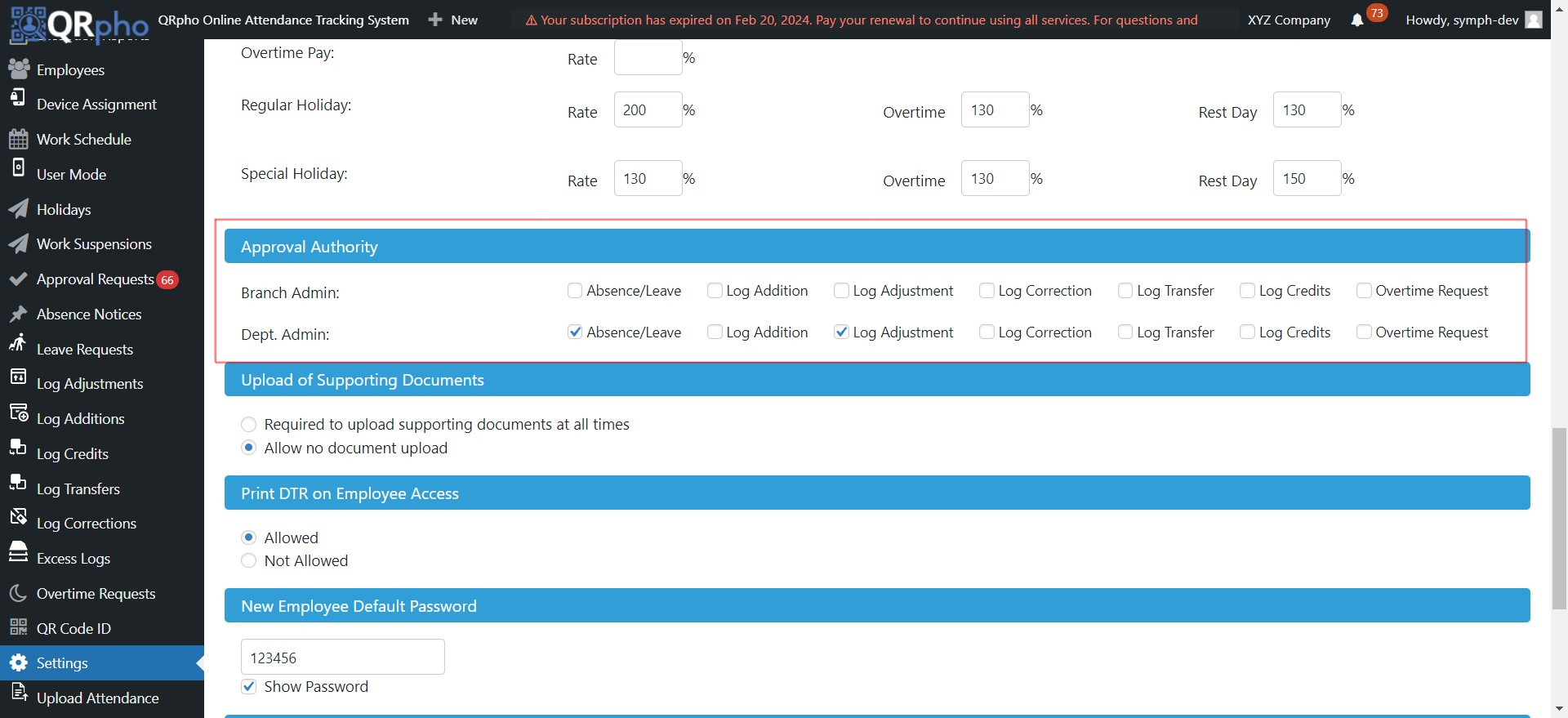
The Branch/Dept Admin account may be given the role of VIEW ONLY or ALLOW APPROVAL OF REQUESTS as per authority set in SETTINGS menu. View only access is good for monitoring the completeness of attendance data and propriety of requests for employees under his/her branch/department like ensuring there are no missing/error logs and requests are supported with proper approval documents. If authority to APPROVE REQUESTS for Log Adjustments, Overtime, Leave Request, Absence Notice, Log Correction etc. is given to him/her by checking all or some boxes in the SETTINGS menu, then approval of requests can be done by him/her and HR will just have to review validity .
To assign approval authority to Branch/Dept. Admin, go to SETTINGS menu and check the boxes where you allow the Branch/Dept Admin to approve requests. Unchecked boxes mean access is View Only. No checkmarks on all boxes mean the Branch/Dept Admin account is VIEW ONLY ACCESS. If boxes are checked, it means Branch/Dept Admin can approve requests related to the checked box.
HOW TO CREATE A BRANCH/DEPT ADMIN USER ACCOUNT
If you want to create another user account for Branch Admin or Dept Admin, just follow these procedures.
PROCEDURES:
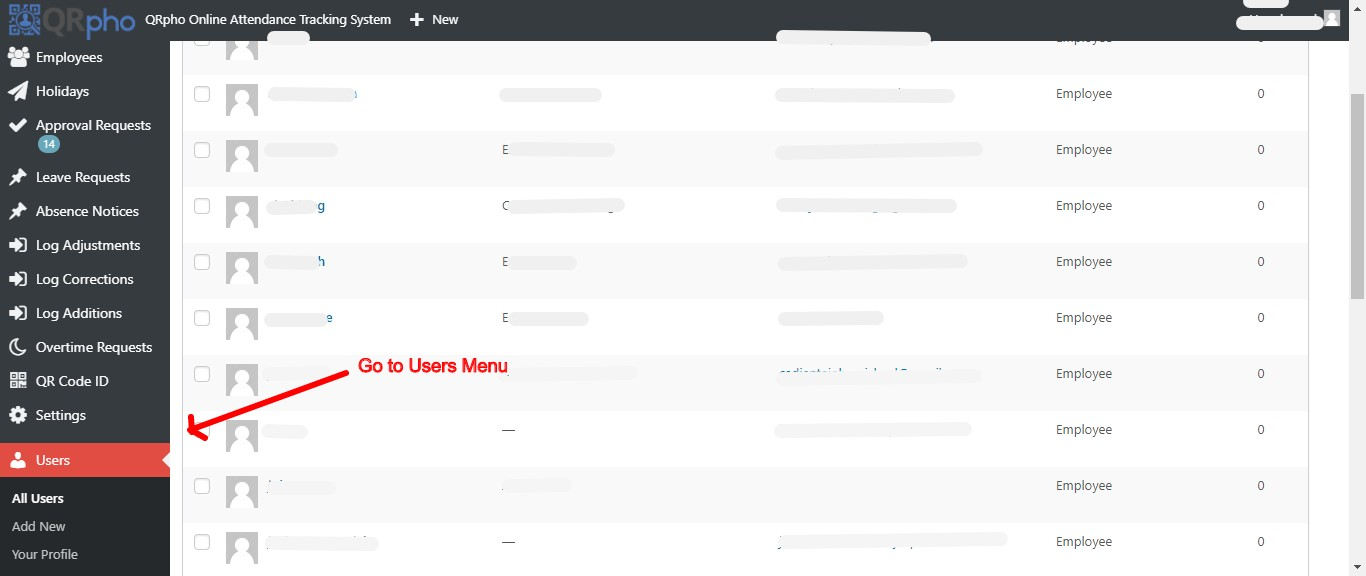
1. Go to USERS menu in the Dashboard
2. Click the Add New button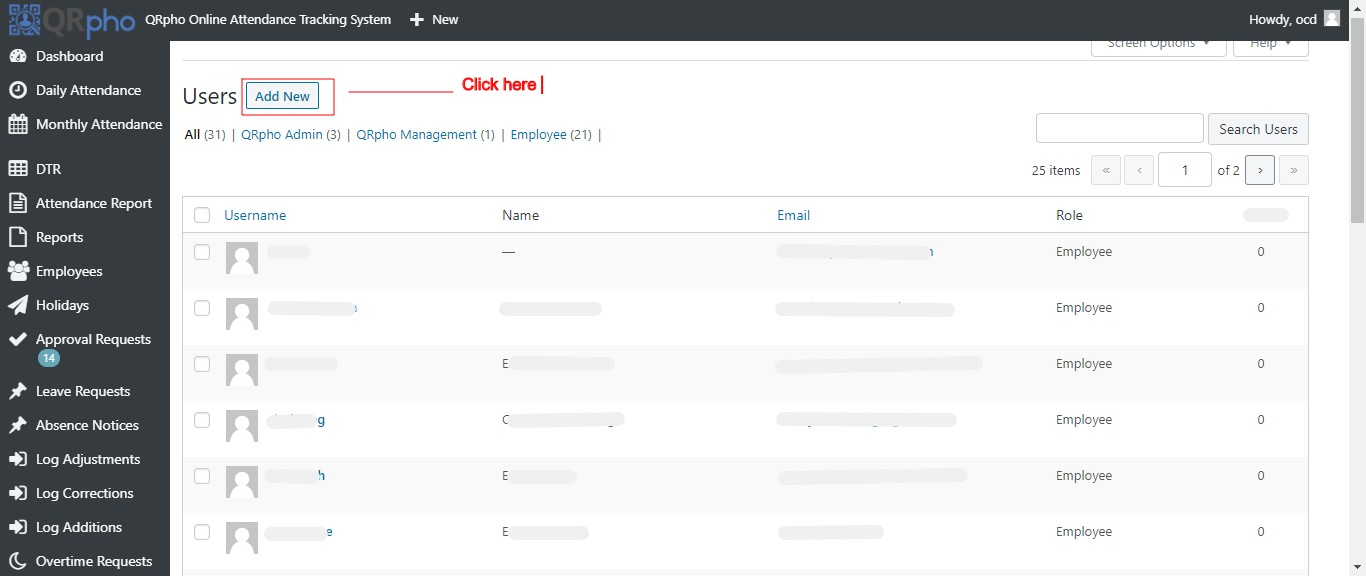
3. Fill up the required info. Suggested username format is “branchname-admin” or “departmentname-admin. Password should be strong but easy to remember. If password set is weak, check the box for “CONFIRM WEAK PASSWORD”.
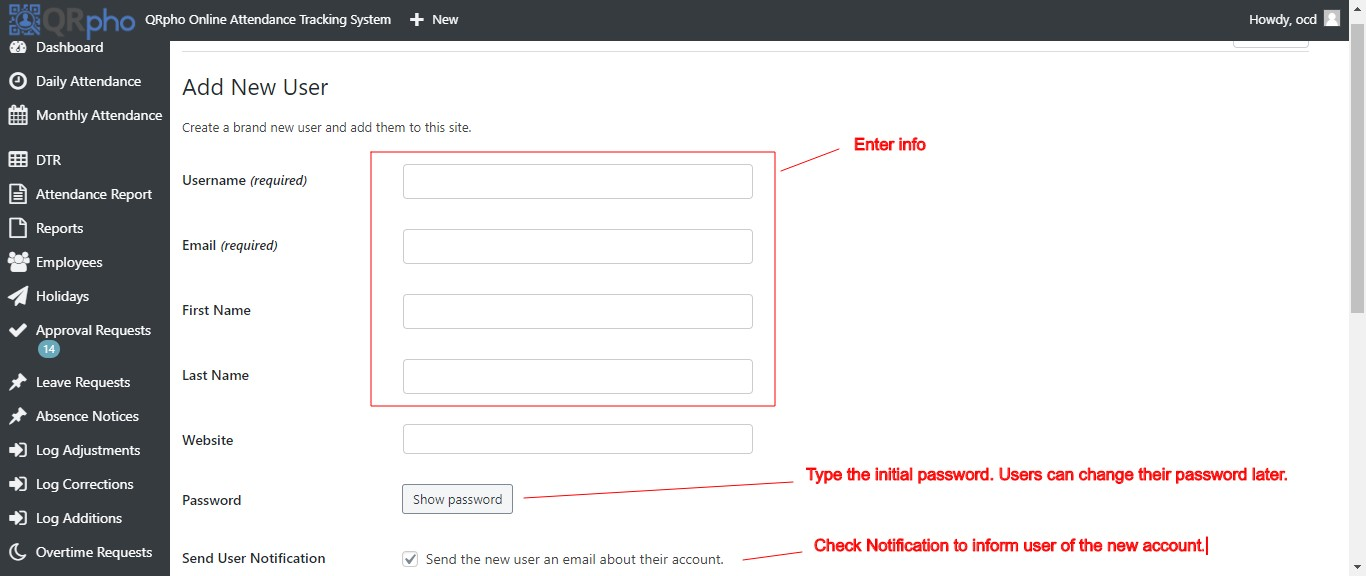
4. EMPLOYEE. LEAVE BLANK. No need to assign the account to an employee. The Branch manager or Department Head will just login using the username and password of this account if he/she wants to view the attendance data of his/her team.
5. ROLES. Check the Branch Admin or Department Admin box to assign the role of Branch Admin or Department Admin to this user.
5. Click “Add New User” button to create the Branch/Department Admin Account profile.
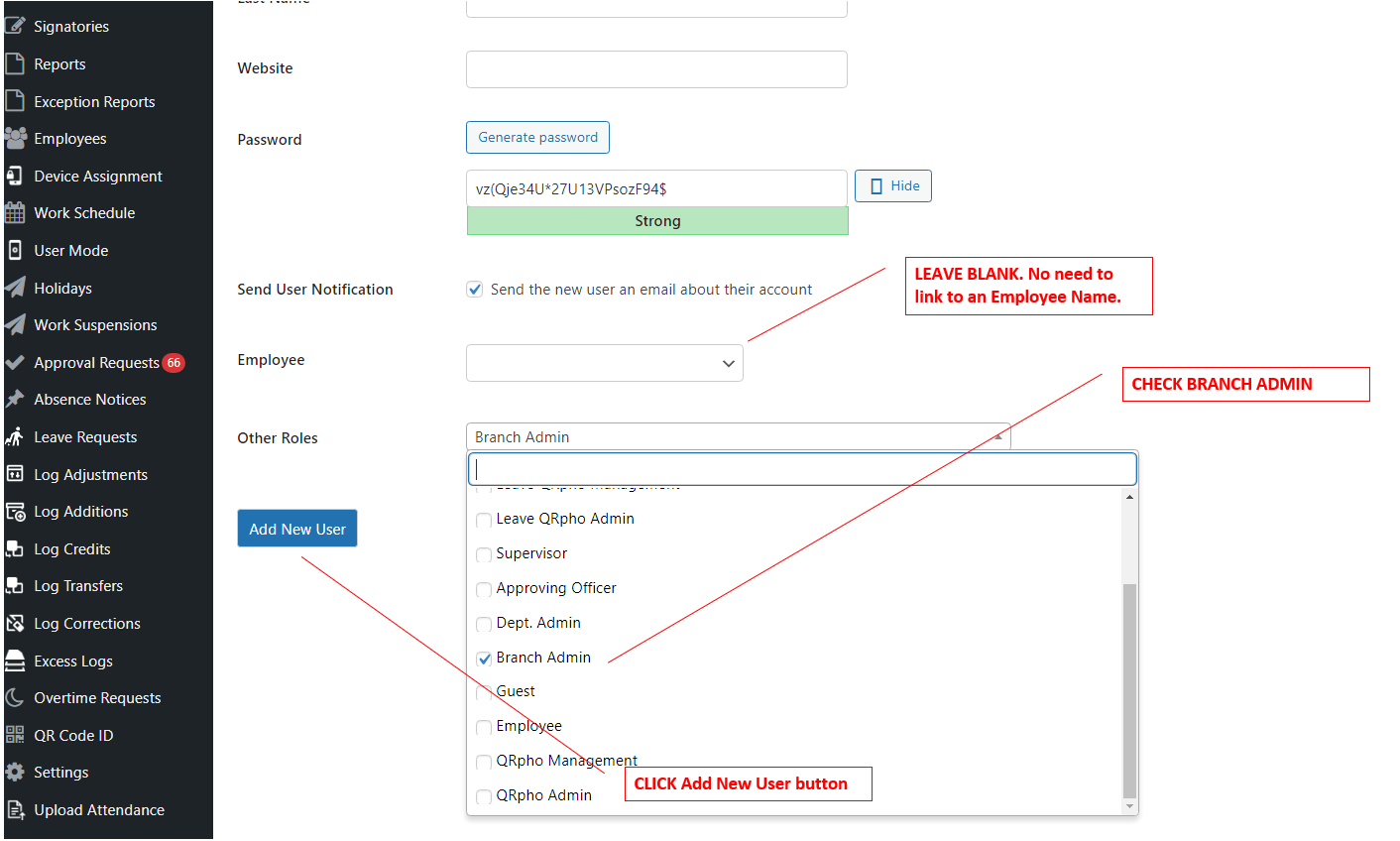
7. After creating the account, next procedure will be to assign employees under the BRANCH/DEPT. ADMIN account.
ASSIGNING EMPLOYEES TO BRANCH/DEPT ADMIN USER ACCOUNT
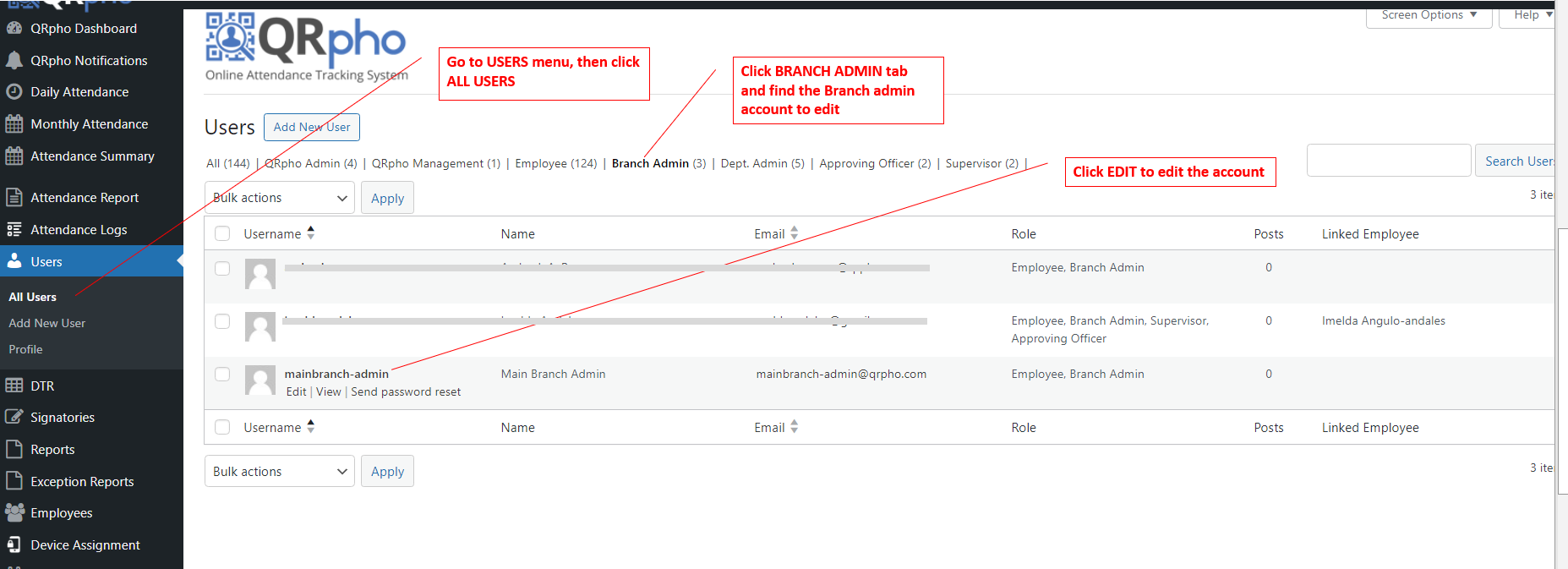
1. Go USERS menu then click ALL USERS. Then click the BRANCH ADMIN or DEPT. ADMIN tab and click Edit link.
2. Once the Branch/Dept Admin account opens, scroll below and go to SELECT BRANCH/DEPARTMENT if you want add ALL EMPLOYEES under that Branch/Department to be under this account. The employees under that branch/department will be listed in the ASSOCIATES box. CLICK “ADD ALL” button to move all branch/department employees to the right box. If you want to select employees under this account, just click the employee you want in the left box and click arrow right >> to add the selected employee to be under this Branch/Dept Admin account. Keep selecting.
3. Once you have finished selecting the employees to be under this Branch/Dept Admin account, click UPDATE USER button.
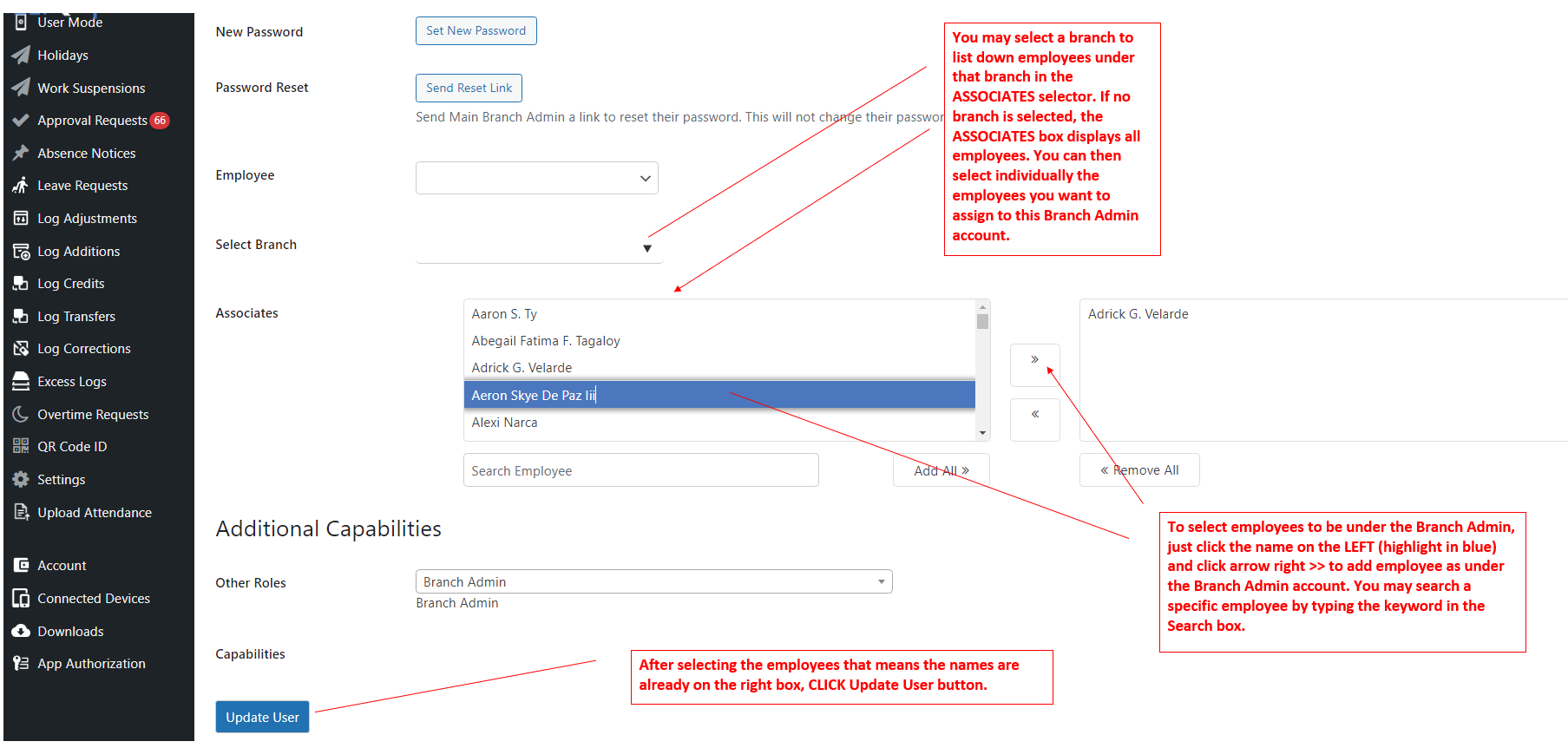
After updating the user account, try logging in to the account and see if the employees selected under him are viewable by him.